
1. Access WhatsApp Manager
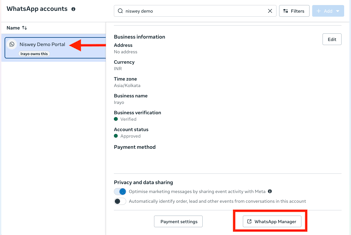
- Log in to the Meta Business Suite and navigate to WhatsApp Manager.
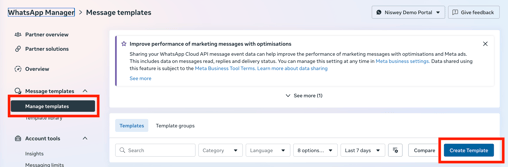
- In the sidebar, select Manage Templates, then click on Create Template.
2. Set Up the Template
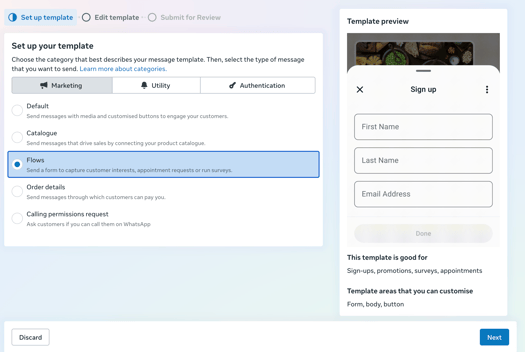
- For a flow template, select Flows under the chosen category (e.g., Marketing).
- Click Next to proceed.
3. Add Template Details
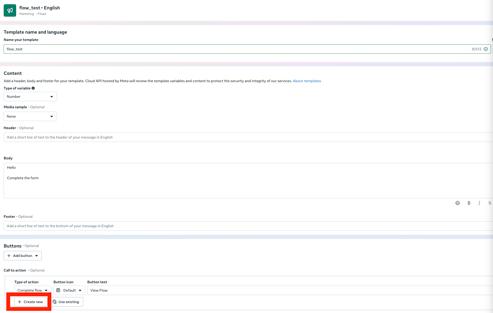
- Template Name: Provide a unique name for your template (e.g., "Feedback Survey" or "Real Estate Inquiry").
- Language Selection: Choose the language for the template.
- Flow Setup: Click on Flow Setup, then choose Create New to start designing a custom form.
4. Design the Flow
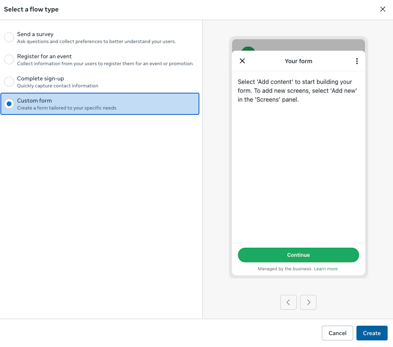
- Choose Custom Form> Click on Create.
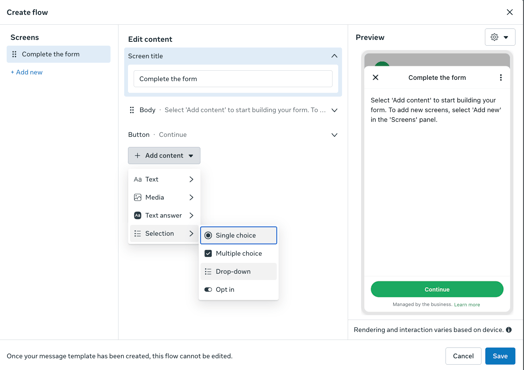
- Screen Title: Complete the form> Click on Button> Add Content > Selections.
5. Preview and Submit
- Review the flow in the Preview Section to ensure all details are accurate.
- Save the template and submit it for Meta’s Approval.
6. Wait for Approval
- Once submitted, the template status will show as "In Review."
- After approval, the template will change to "Active," making it ready for use.
Using the Flow Mapping Feature in Vira:
7. Access Flow Mapping in Vira
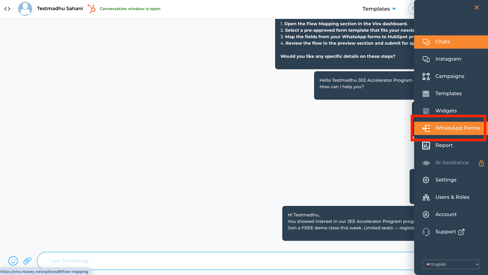
- Open the Vira dashboard and navigate to the WhatsApp Forms section.
8. View Approved Templates
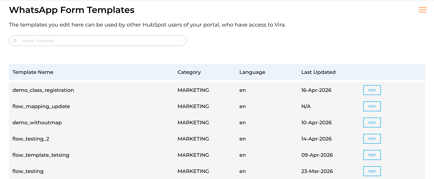
- In the WhatsApp Form Templates section, you will see all the pre-approved templates from Meta.
9. Select a Template
- Click on the template you want to use for the flow.
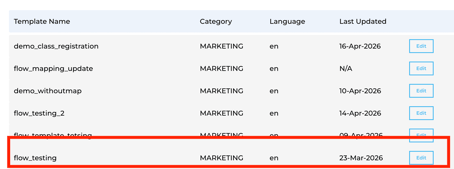
10. Map Fields to HubSpot Properties
- Map the fields from the template with the corresponding properties in HubSpot.
- Ensure the HubSpot properties match the options in your WhatsApp template for accurate data syncing.
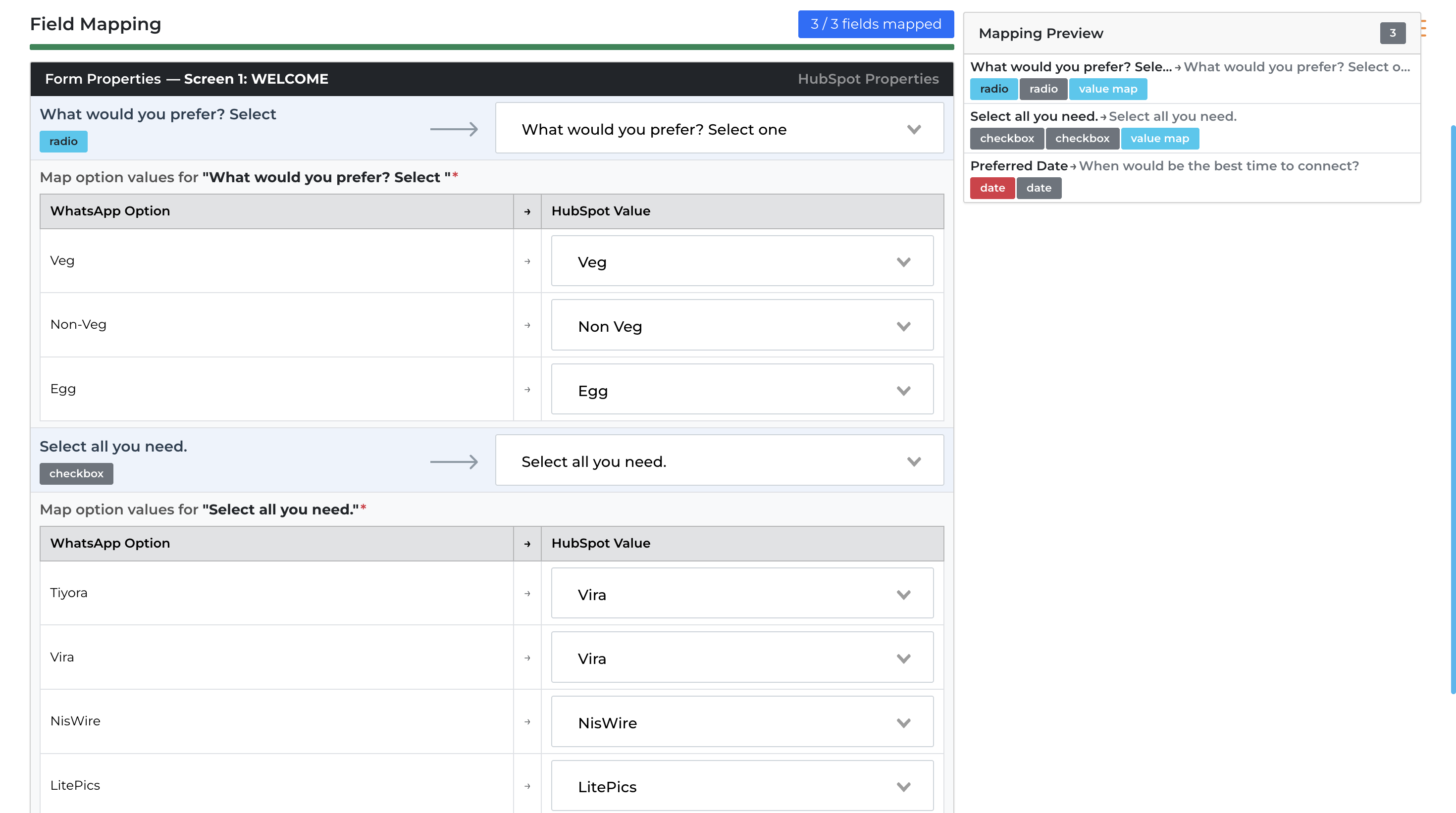
11. Save the Mapping
- Once the fields are mapped, click Save to finalize the configuration.
12. Send the Form to Recipients
- Use the Vira dashboard to send the WhatsApp form to the desired contacts or lists.
13. Sync Responses with HubSpot
- When the recipient fills out the form on WhatsApp, their responses will automatically sync to the corresponding HubSpot properties.
Get Started with Vira now!
Having troubles? File a Support Ticket or Book a call!