
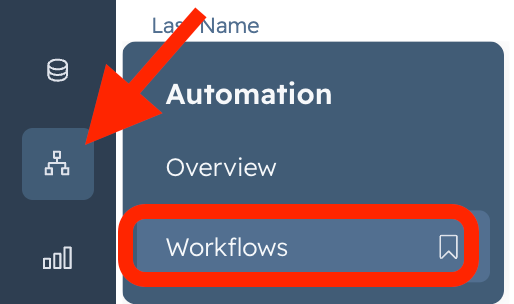
1. Go to HubSpot> Automations>Workflow
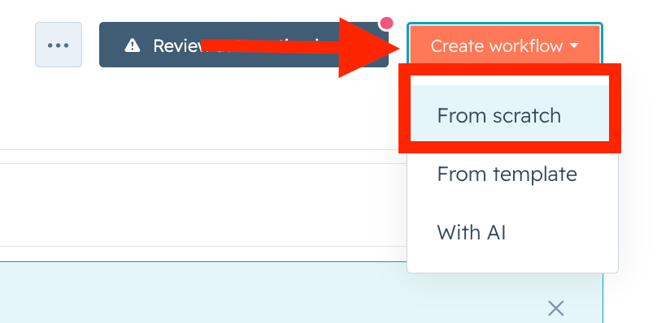
2. Click on Create Workflow> From Scratch
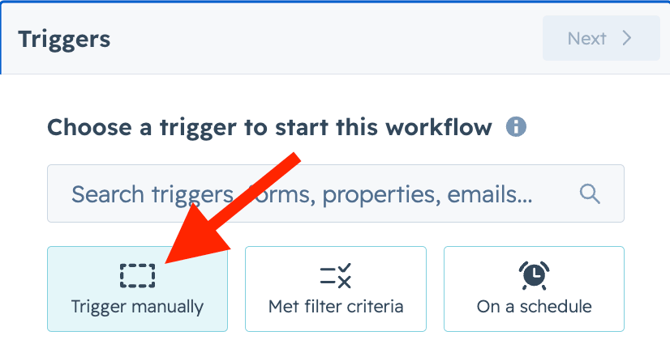
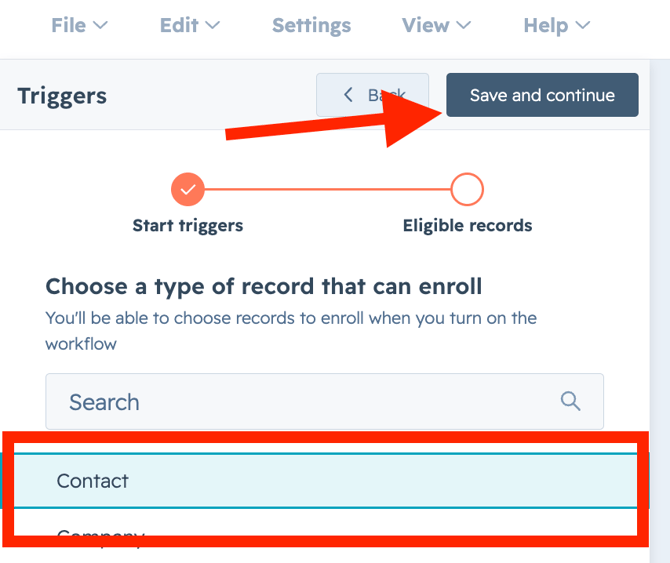
3. Click on Trigger Manually> Contact> Save and Continue
4. Click on Group 1 Manually trigger only
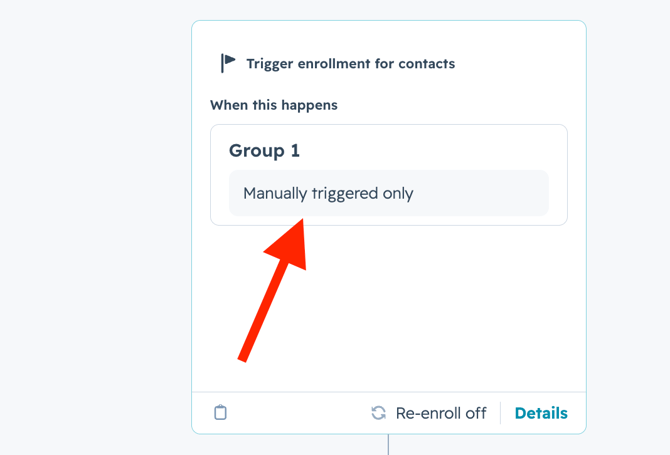
5. Click on When Filter criteria is met> Save
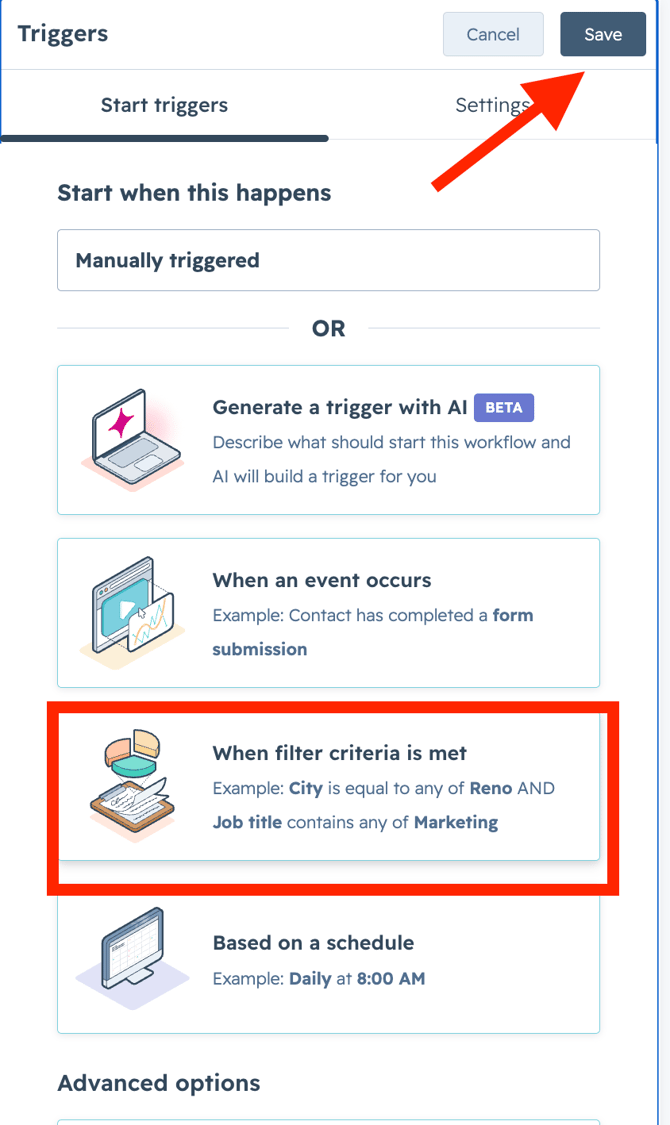
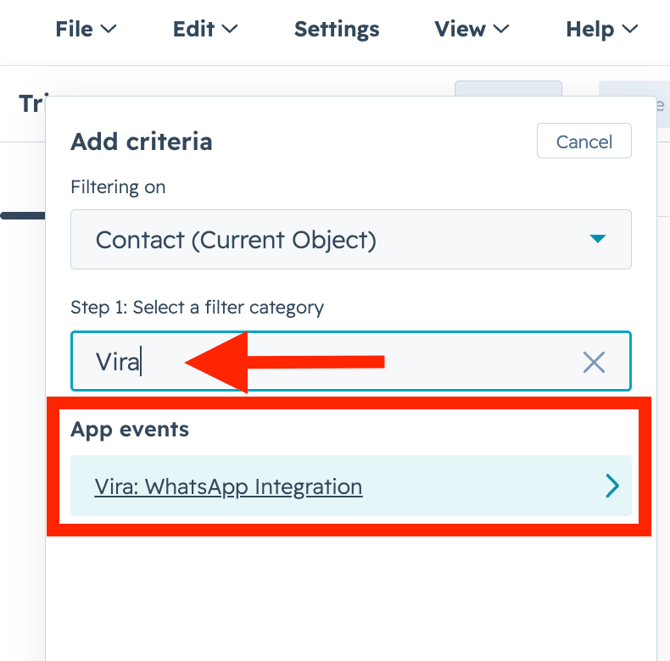
6. Click on search filter Category> Vira:WhatsApp Integration.
7. Click on Message received.
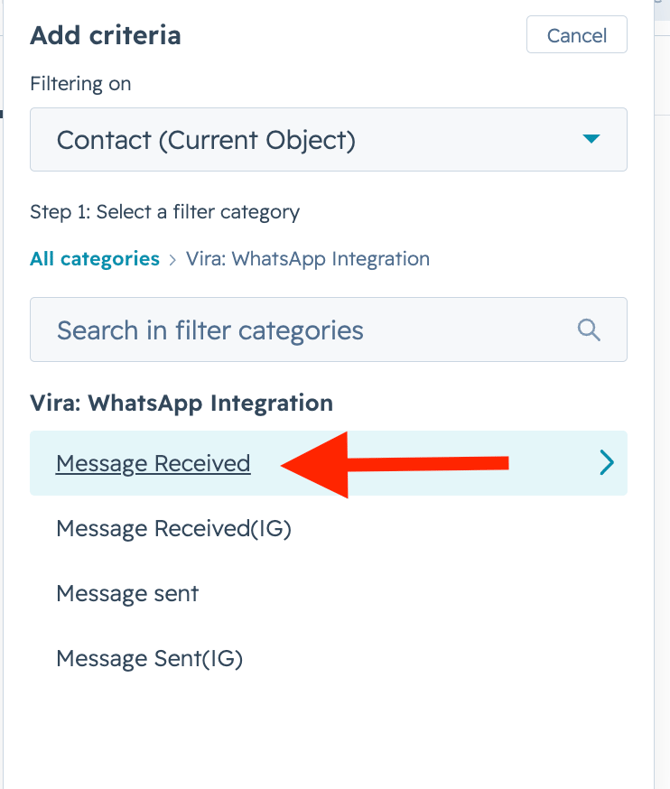
8. Message received has been completed any number of times> Add criteria.
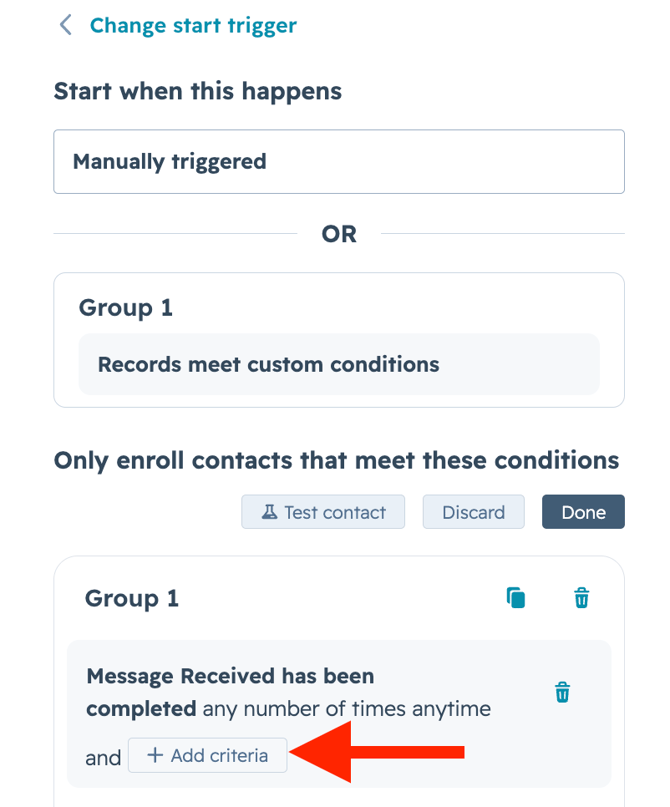
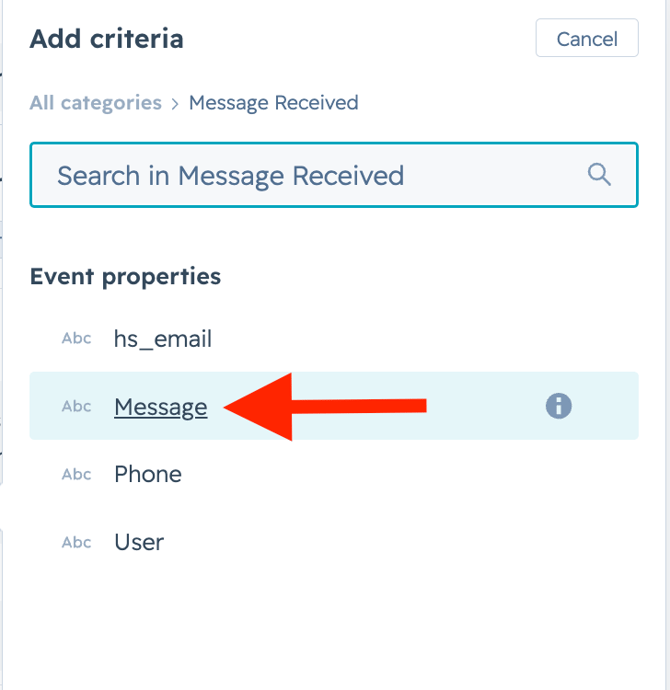
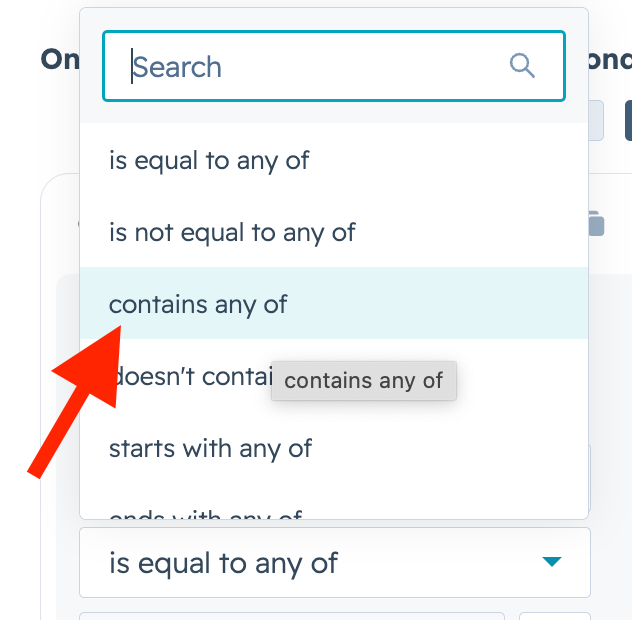
9. Click on message> Contains any of.
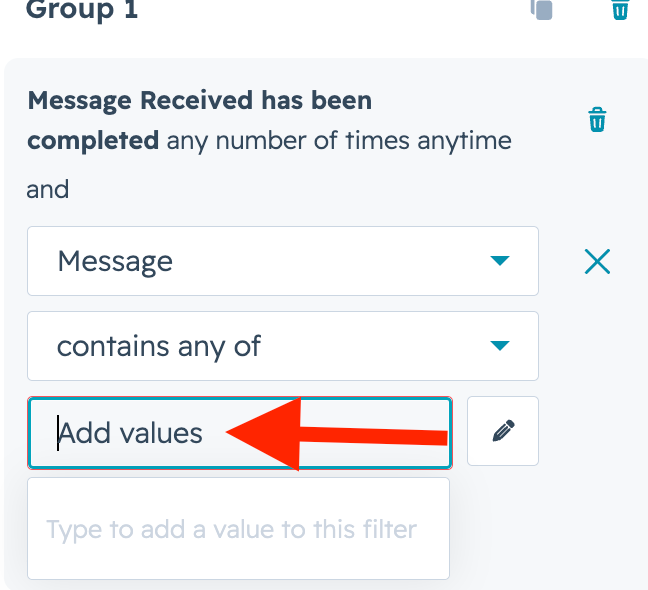
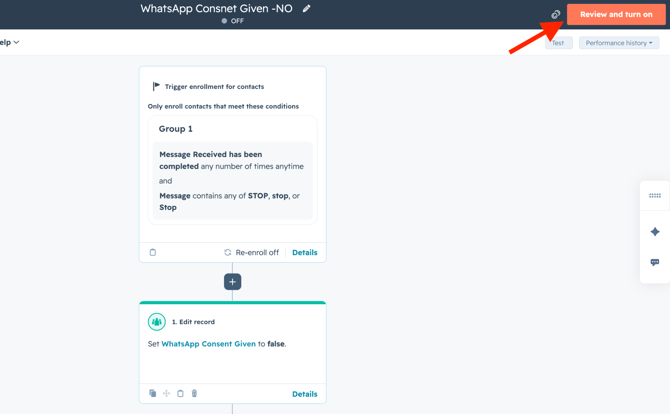
10. Click on Add values> Put STOP, Stop, stop> Click on Save.
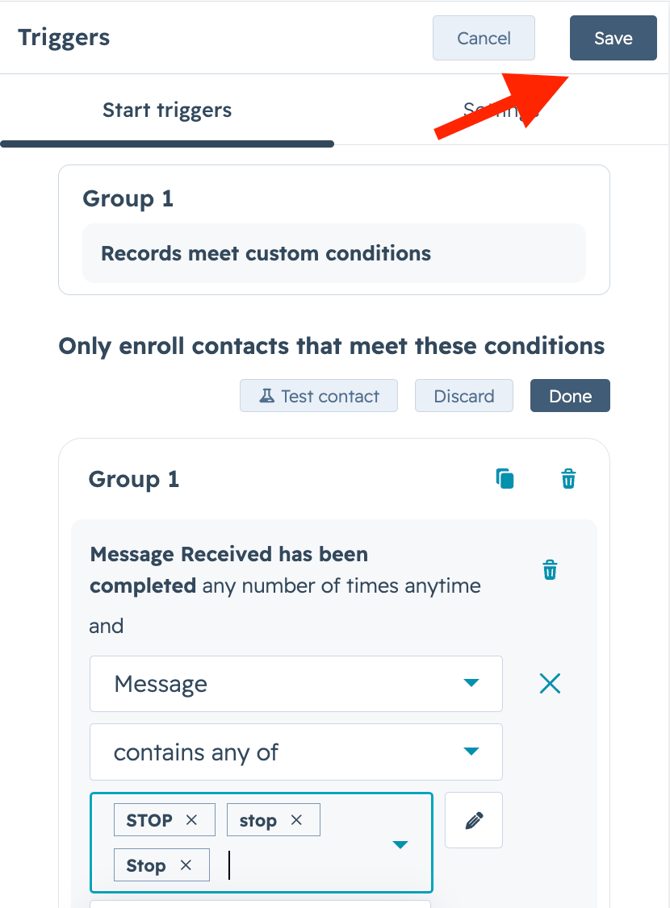
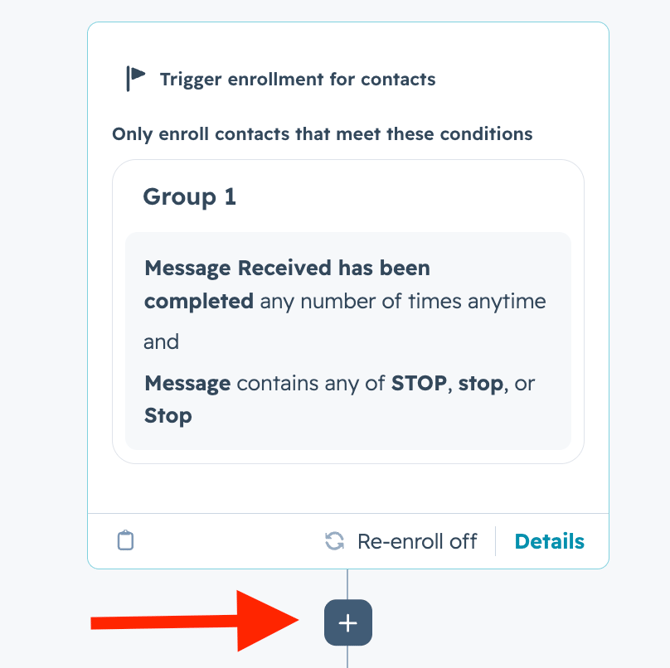
11. Click on +Icon> Go to CRM
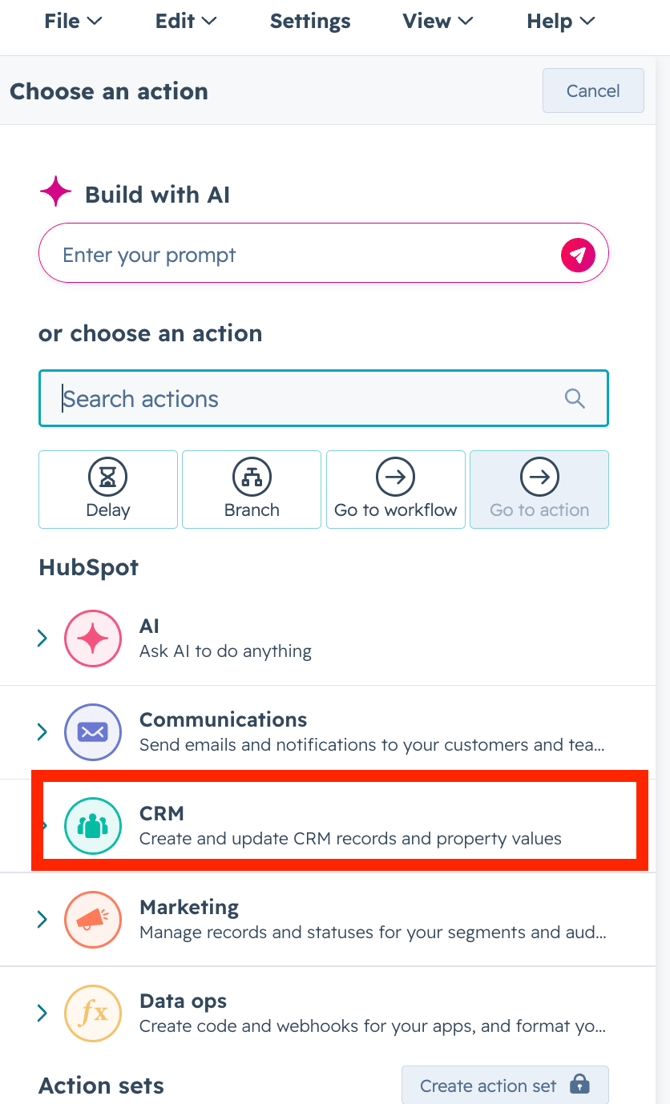
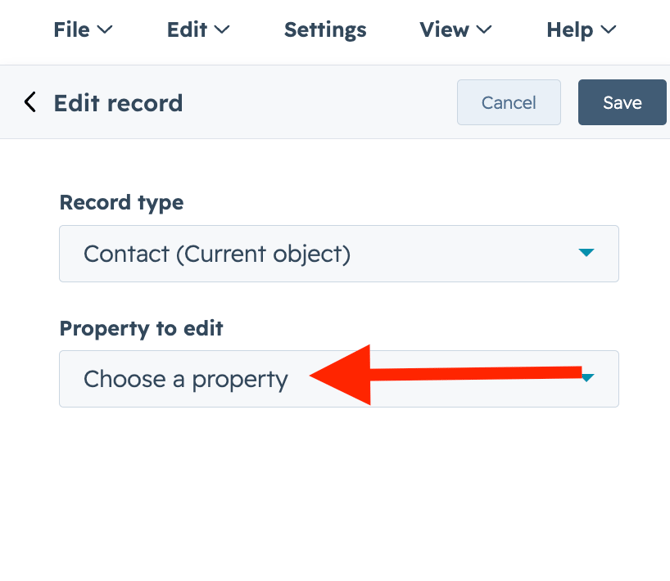
9. Click on Edit record>Choose property.
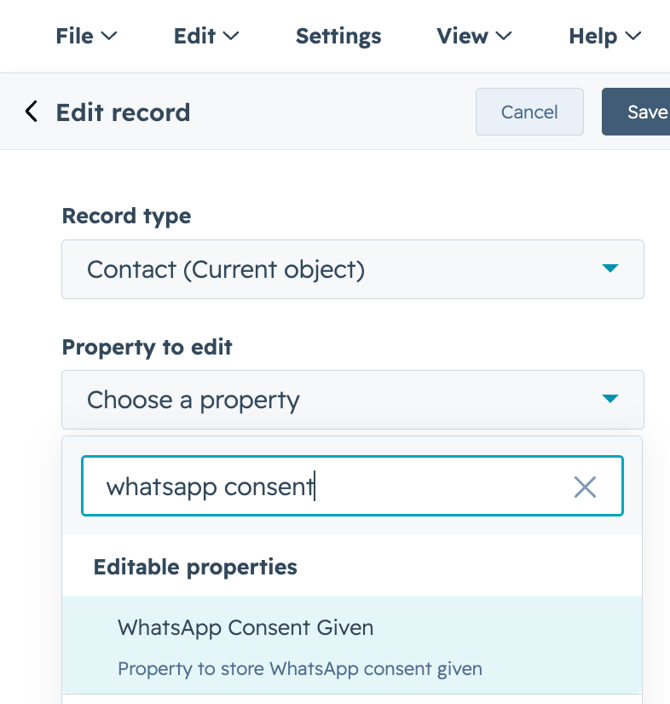
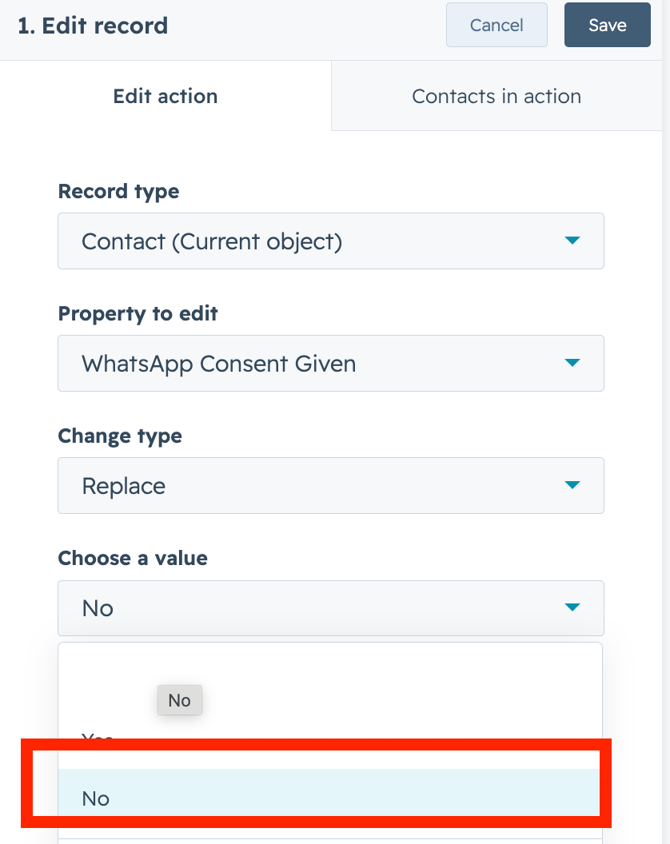
10. WhatsApp Consent Given> Choose a Value> No> Save
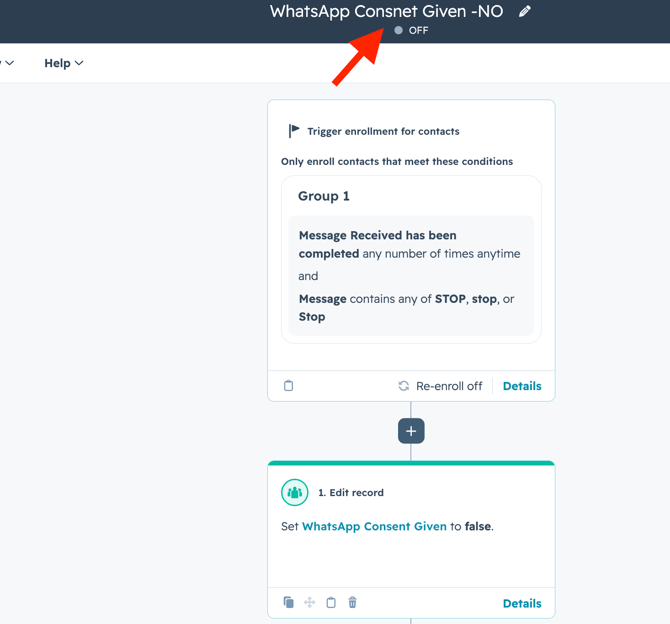
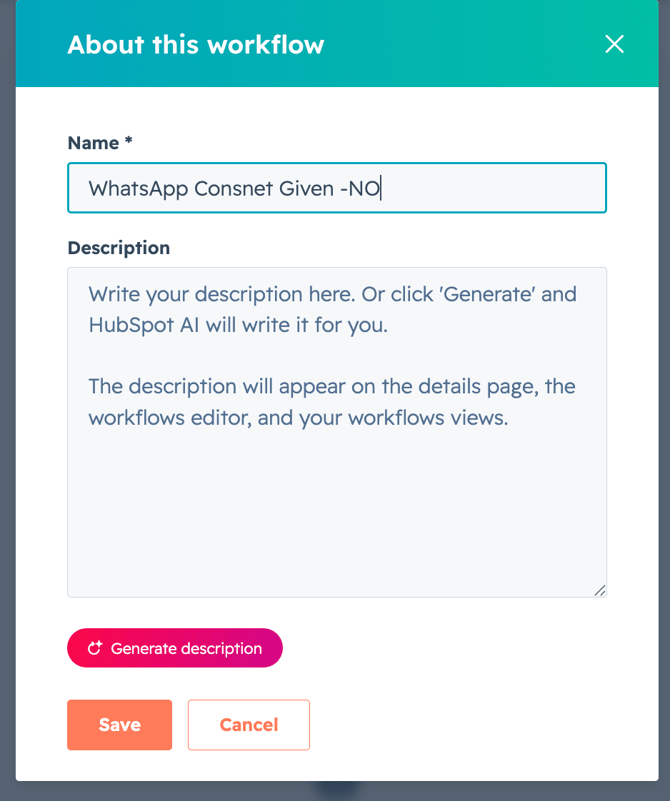
11. Click the small pencil icon on the top center> Name the workflow> Save
12. Click on Review and Turn on the workflow.
Get Started with Vira now!
Having troubles? File a Support Ticket or Book a call!
2. Click on Create Workflow> From Scratch
3. Click on Trigger Manually> Contact> Save and Continue
4. Click on Group 1 Manually trigger only
5. Click on When Filter criteria is met> Save
6. Click on search filter Category> Vira:WhatsApp Integration.
7. Click on Message received.
8. Message received has been completed any number of times> Add criteria.
9. Click on message> Contains any of.
10. Click on Add values> Put STOP, Stop, stop> Click on Save.
11. Click on +Icon> Go to CRM
9. Click on Edit record>Choose property.
10. WhatsApp Consent Given> Choose a Value> No> Save
11. Click the small pencil icon on the top center> Name the workflow> Save
12. Click on Review and Turn on the workflow.
Get Started with Vira now!
Having troubles? File a Support Ticket or Book a call!