
Steps to Enable Marketing Messages API
-
Click on the Re-authorize Link
- Click on the Authorize Now button
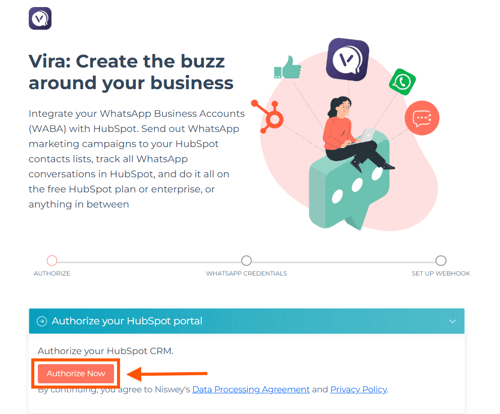
3. Select Your HubSpot Portal
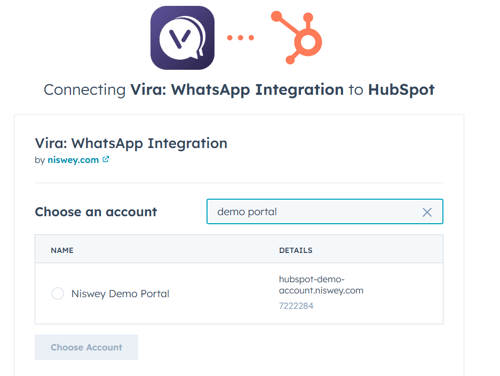
4. Click on “Choose Account”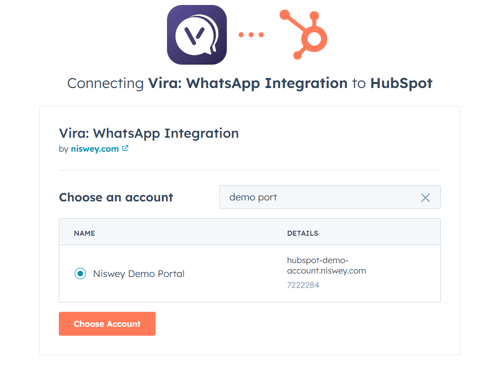
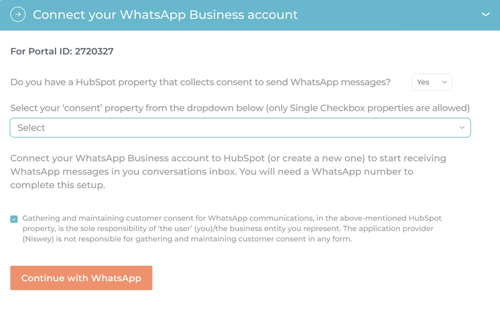
5. Do you have a HubSpot property that collects consent to send WhatsApp messages?
7. Tick the checkbox stating that gathering and managing customer consent for WhatsApp communications in the aforementioned property is the sole responsibility of the use (you)/the business you represent
8. Click Continue with WhatsApp
9. Log in with your Facebook Meta account
10. Click on Continue
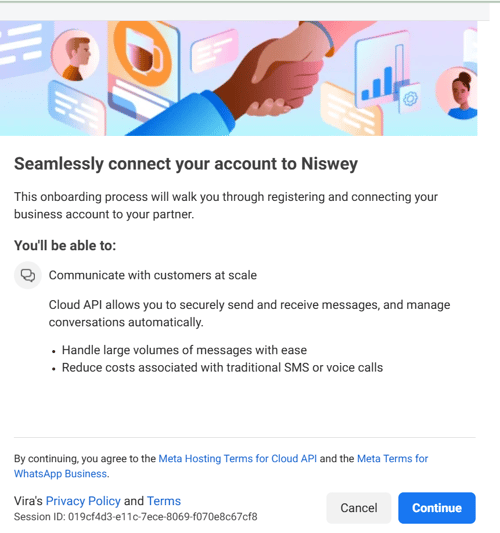
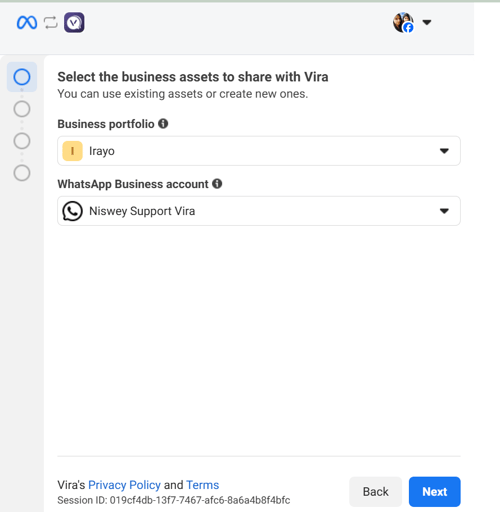
11. Select your Business Portfolio
12. WhatsApp Business account
13. click Next.
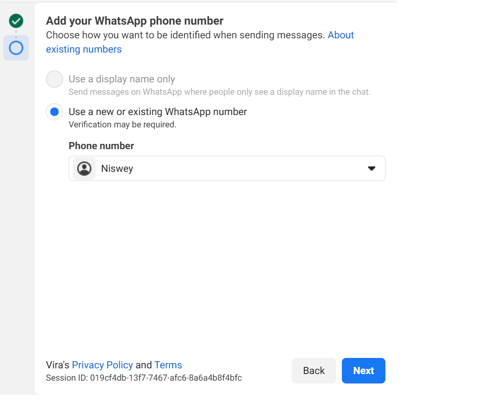
14. Select "Use a new or exitsing WhatsApp number
15. In the Phone number dropdown select the number connected to Vira
16. Click on Next
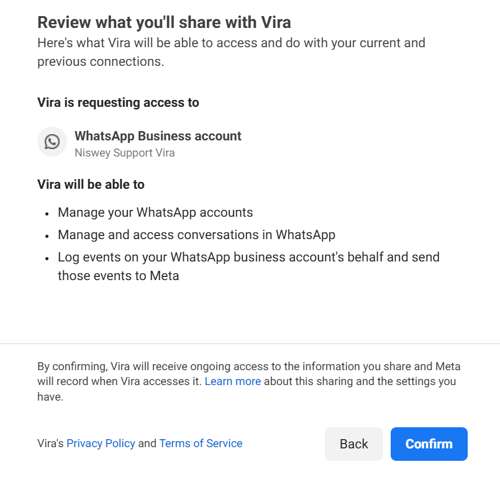
17. Click on Confirm
18. Click on Finish
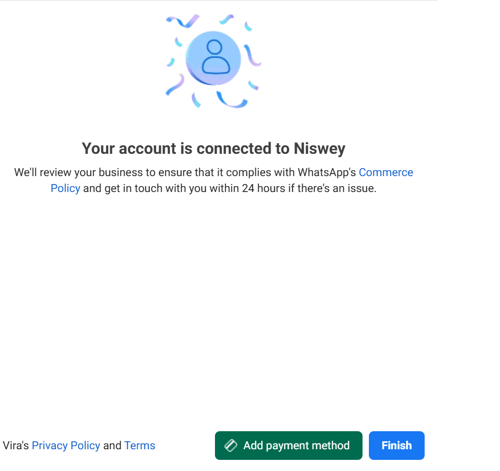
And, you're good to go!
Having troubles? File a Support Ticket or Book a call!