
Overview
What is Human Handoff?
When Vira's AI assistance is processing a customer's message and determines it needs human help, a human handoff is triggered. This creates a hand icon notification in your Vira Chats dashboard, indicating that the conversation requires immediate human attention.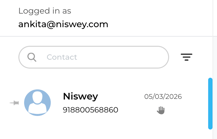
This guide explains how to set up a HubSpot Workflow that automatically notifies your team when a human handoff occurs. Your team will receive alerts via In-App Notifications in HubSpot, ensuring no handoff goes unnoticed.
Please note, you can set up notification alerts on internal emails, slack, etc as per your internal communication channel as connected with HubSpot.
Prerequisites
Before setting up the workflow, ensure you have:
Vira AI Assistance enabled in your Vira portal. (Reach us here to enable.)
HubSpot account with workflow creation permissions
Access to HubSpot workflows under Automation menu
How It Works
The workflow monitors for when the "Vira Needs Human" contact property is set to "Yes". When this happens automatically (due to a handoff trigger), the workflow:
- Sends an In-App notification in HubSpot to alert the contact owner
- Clears the property after notifications are sent (to reset for the next handoff)
Step-by-Step Setup Guide
Step 1: Access HubSpot Workflows and Choose Workflow Type
-
Log in to your HubSpot account and go to:
-
Automation → Workflows
- Click Create Workflow (top right)
-
In the workflow creation dialog, select:
-
Start from scratch option
-
Choose Contacts as the object type
-
Click Create
Step 2: Set Trigger Condition
Configure the trigger condition:
Property: Vira Needs Human > is any of > Yes
This ensures the workflow only runs when a human handoff actually occurs.
Step 3: Add Workflow Actions
Click the "+" button below the trigger box to add the first action.
Action 1: Send In-App Notification
This notifies the contact owner directly in HubSpot:
- Click "Add action" → Select "Send In-App Notification"
- Configure:
- Title: "New Handoff"
- Recipient: Select "Enrolled Contact's Owner"
- Message: Customize notification text
Action 2: Clear the Property
After notifications are sent, clear the property to reset for the next handoff:
- Click "Add action" → Select "Edit Record"
- Configure:
- Object: Contact
- Property: Vira Needs Human
- Value: Clear/Empty
Step 4: Enable & Test
In the top-right corner, click "Review and Turn On" to activate the workflow.
To test:
- Open a contact's record in HubSpot
- Set "Vira Needs Human" property to "Yes"
- Wait 30 seconds and verify:
✓ In-App notification displayed
✓ Property clears automatically
Having troubles? File a Support Ticket or Book a call!