
Authorize Your Account
- Go to https://vira.niswey.net/
Click Authorize
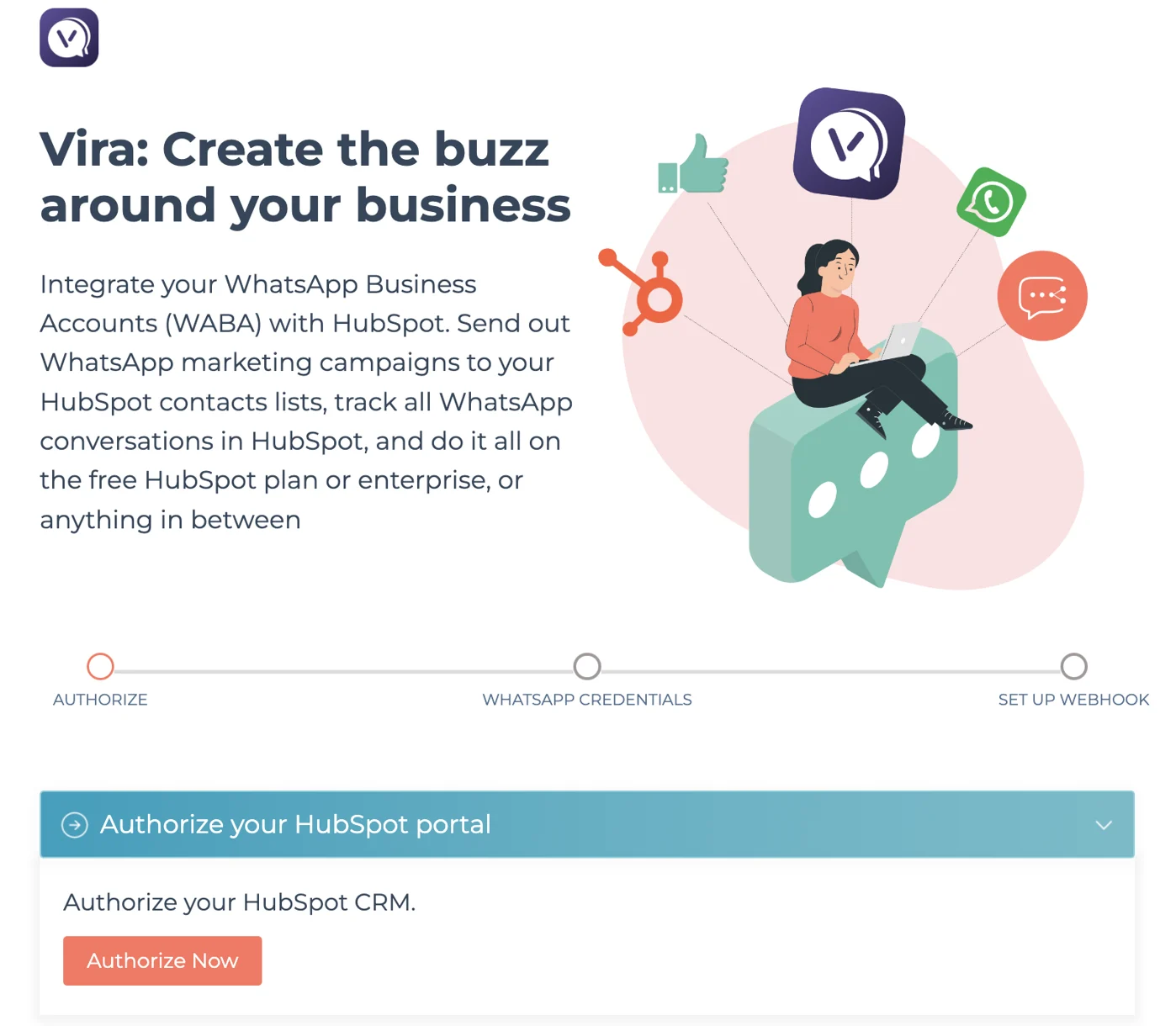
2. Choose the HubSpot portal where you wish to enable WhatsApp automation
Click Connect App
3.Set up to record customer consent
On the next screen, indicate your "customer consent" set-up
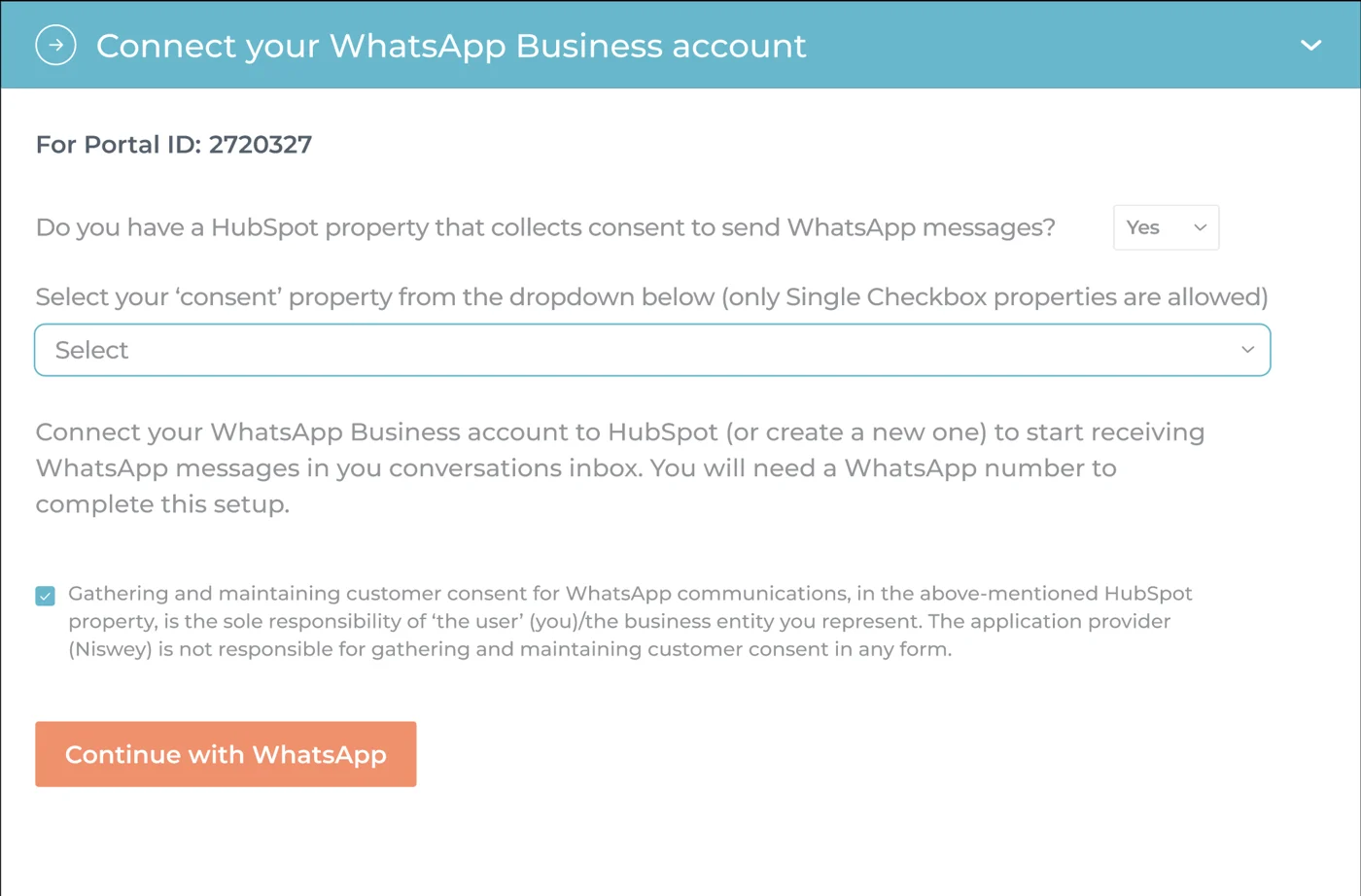
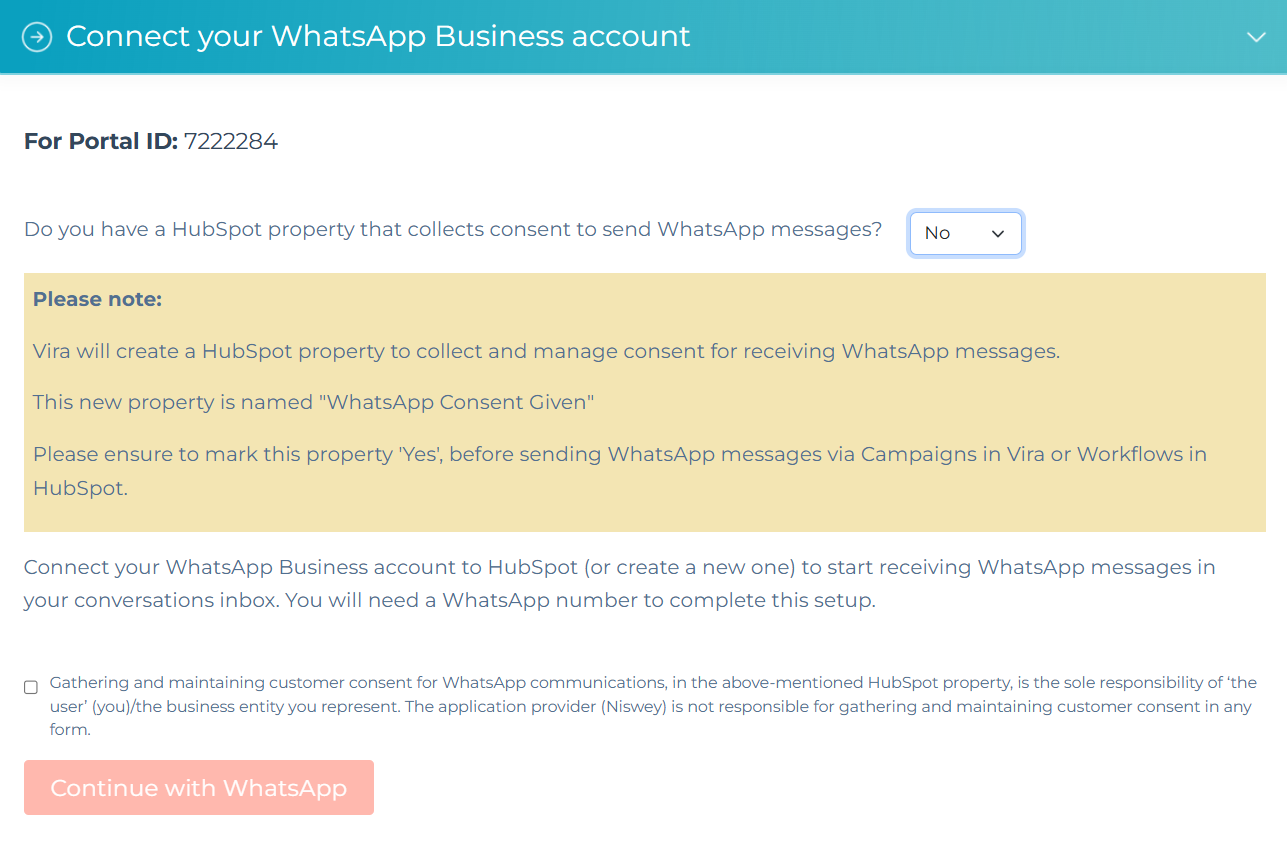
From the dropdown, indicate if you already have a HubSpot property that collects customer consent to receive WhatsApp communication from you/your business
- If yes, you will be directed to select that property from a dropdown list of all your HubSpot properties
- If no, then Vira will create a new HubSpot property for you, named "WhatsApp Consent Given"
Tick the checkbox stating that gathering and managing customer consent for WhatsApp communications in the aforementioned property is the sole responsibility of the use (you)/the business you represent
Click Continue with WhatsApp
Connect your WhatsApp Business Account (WABA) to Vira
- Click on continue.
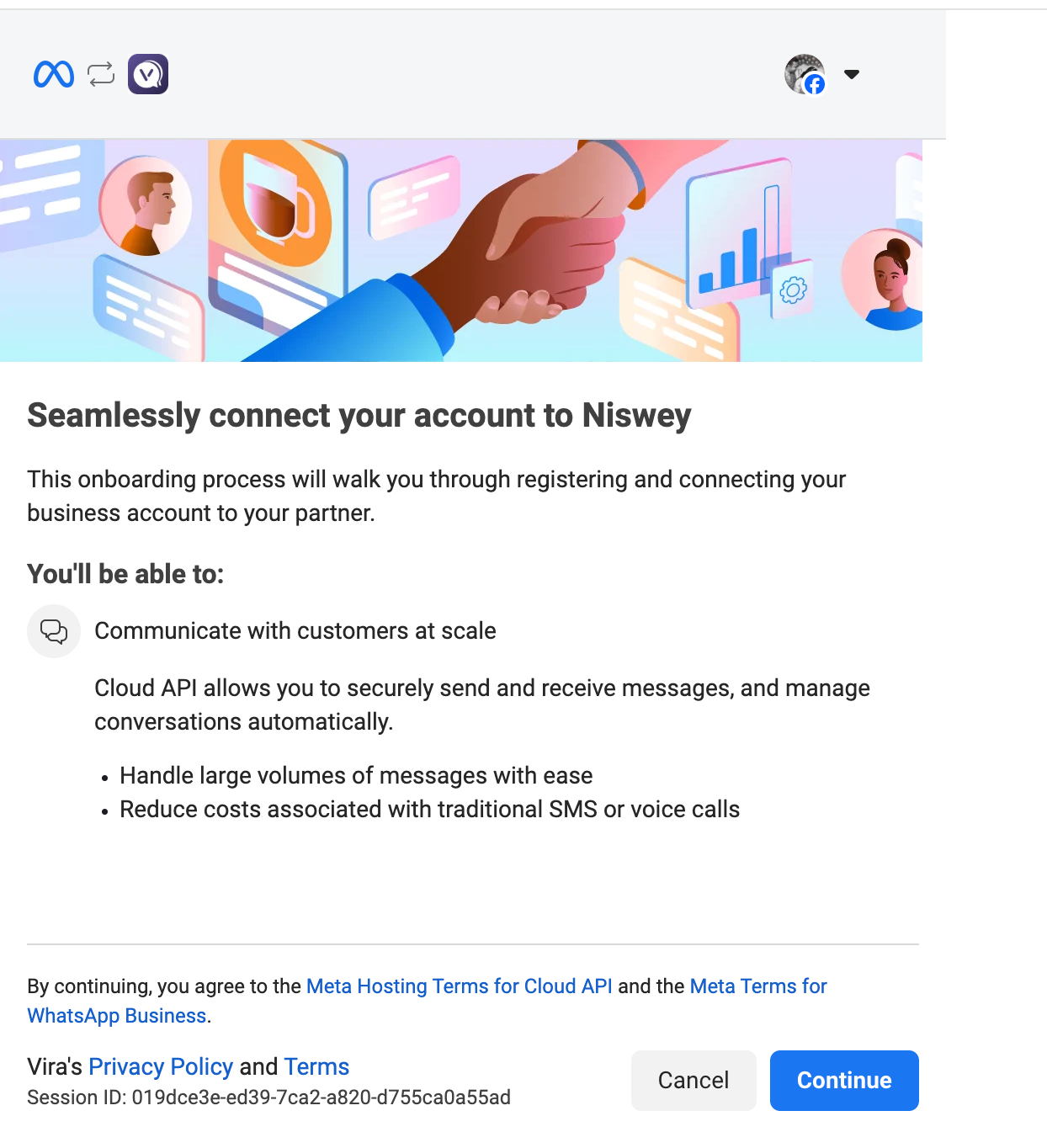
5. Select your Business Portfolio >Select WHatsApp business account> Connect a whatsapp business app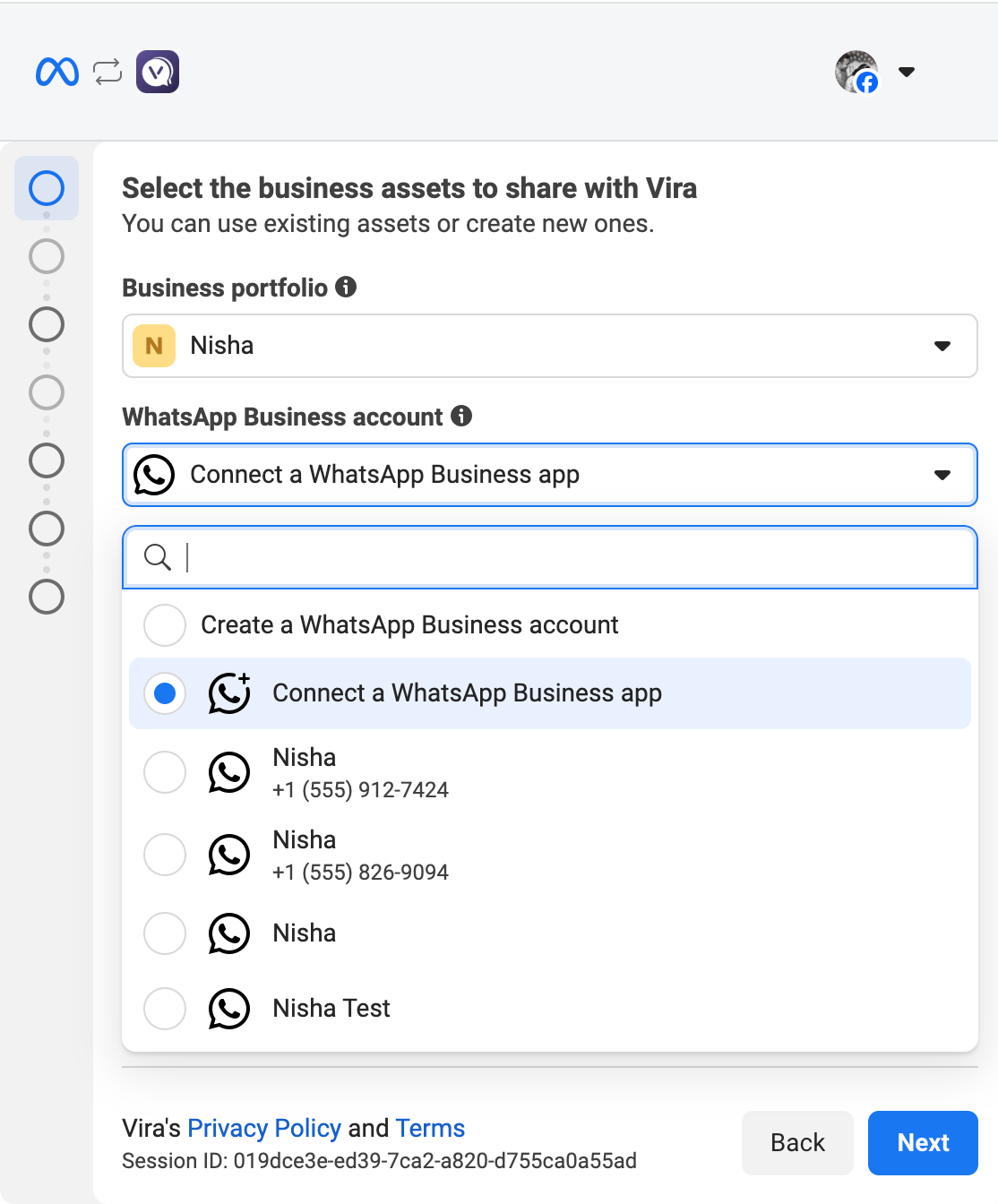
6. Enter yourWhatsApp Business phone number >Click Next.
7. Scan the QR code from WHatsApp Business App.
8. Once scanned the code then Select your timezone >Click Next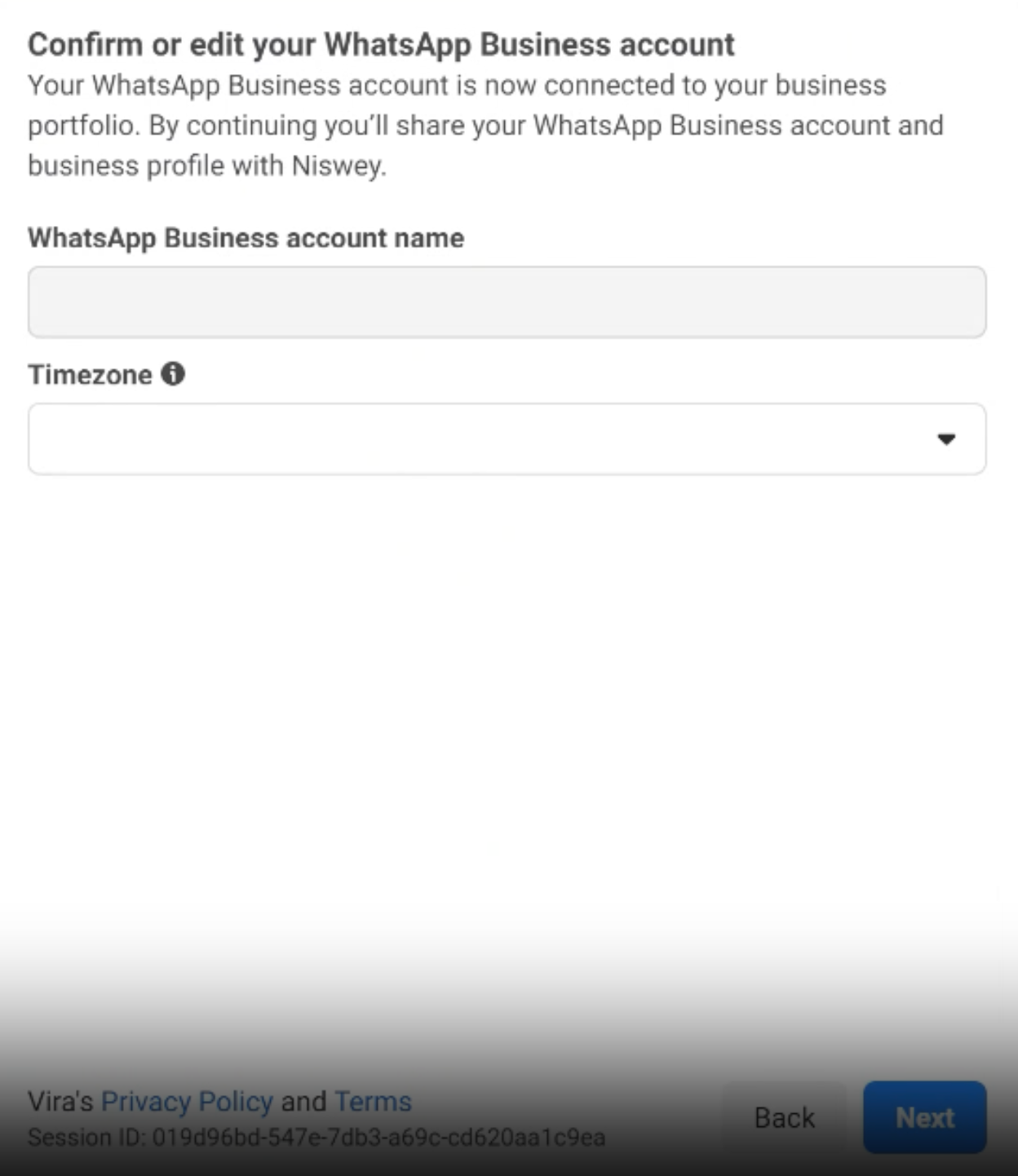
9. Click on Confirm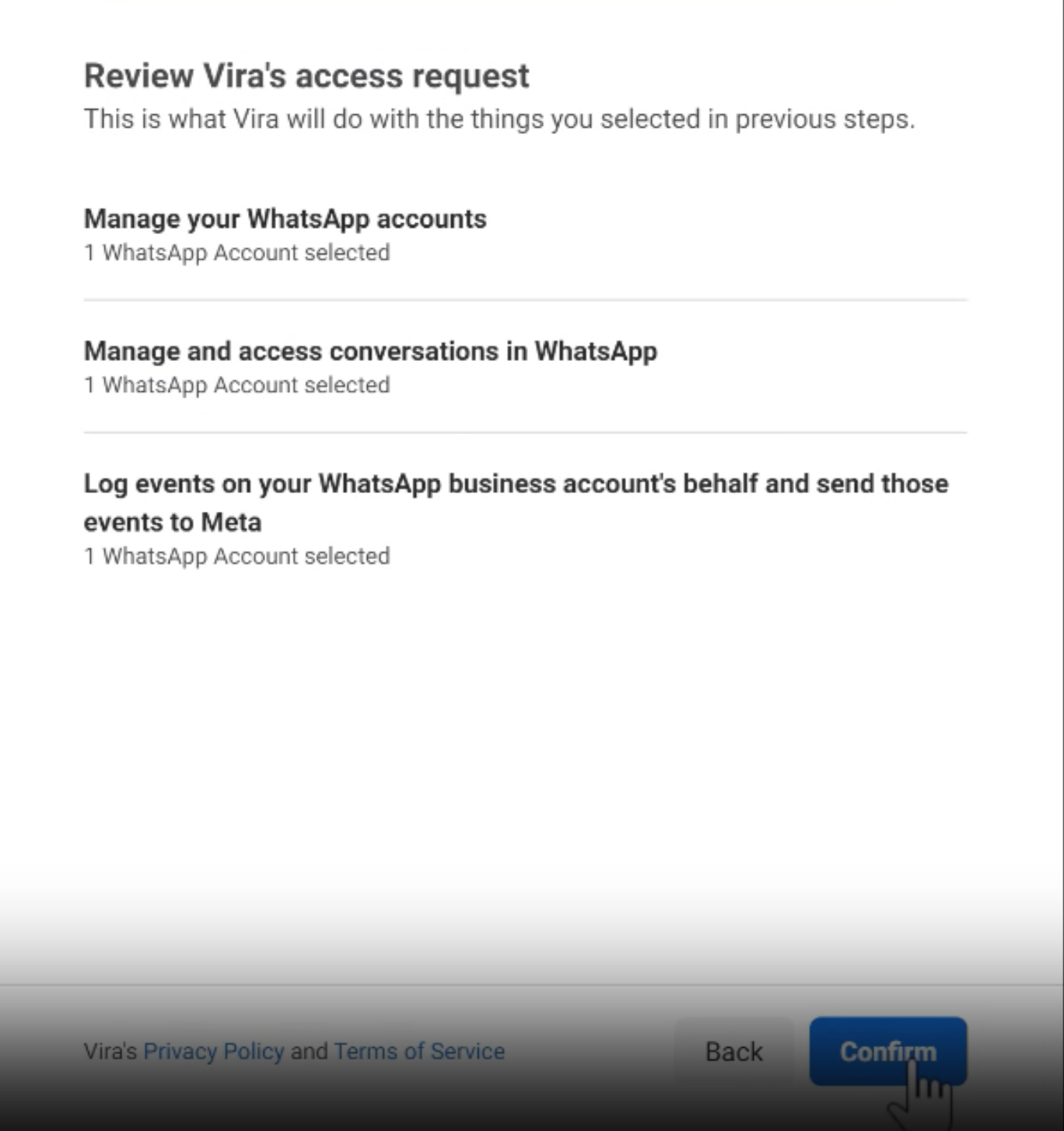
10. Click on Add Payment method on Meta>Add card details.
11. Once added your account will be set up successfully.
Having troubles? File a Support Ticket or Book a call!