

About
Take a look at this Veracross HubSpot Integration documentation for a step-by-step guide on how to integrate Veracross with your HubSpot
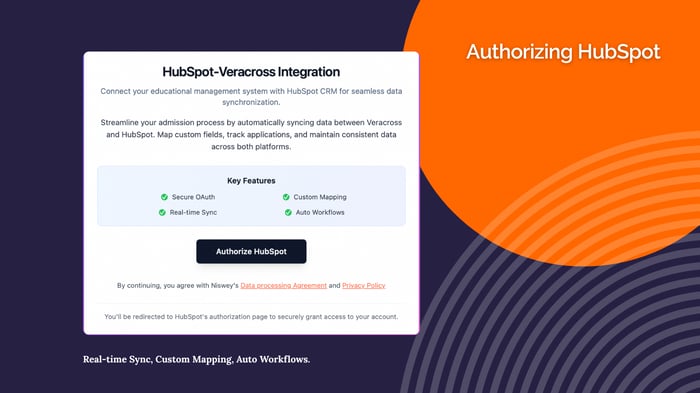
1. Go to https://veracross.niswey.net/ and click Authorize HubSpot.
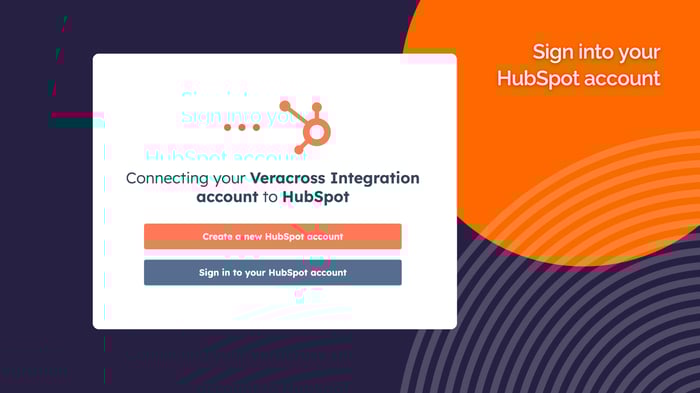
2. Sign into your HubSpot account
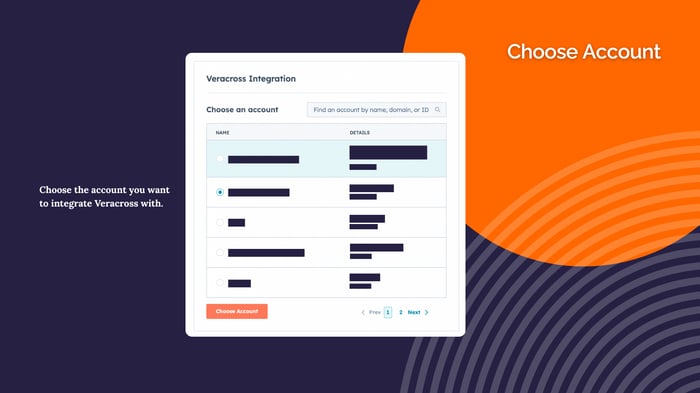
3. Choose the account you want to integrate Veracross with.
Click Choose Account.
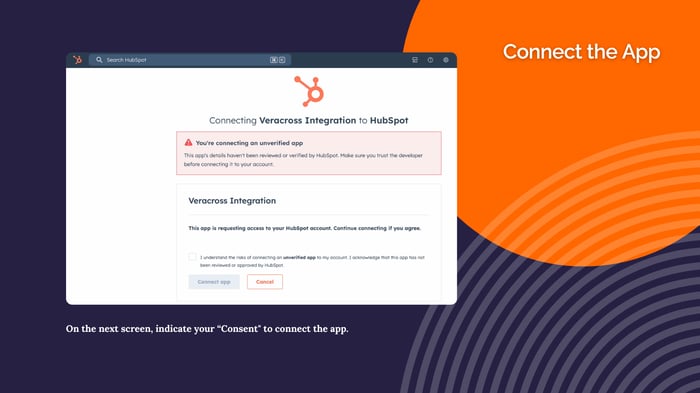
4. On the next screen, indicate your “Consent" to connect the app.
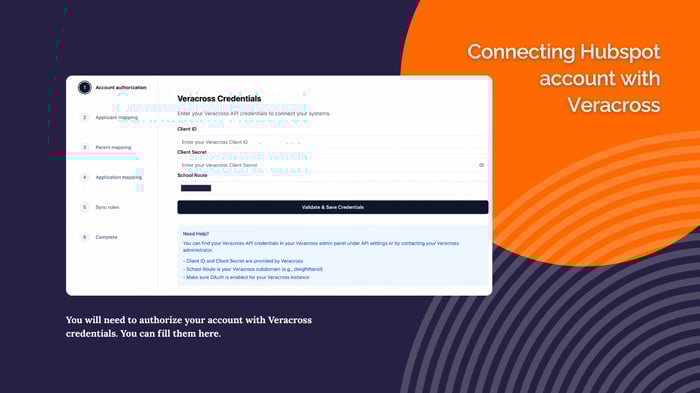
1. You will need to authorize your account with Veracross credentials. You can fill them here.
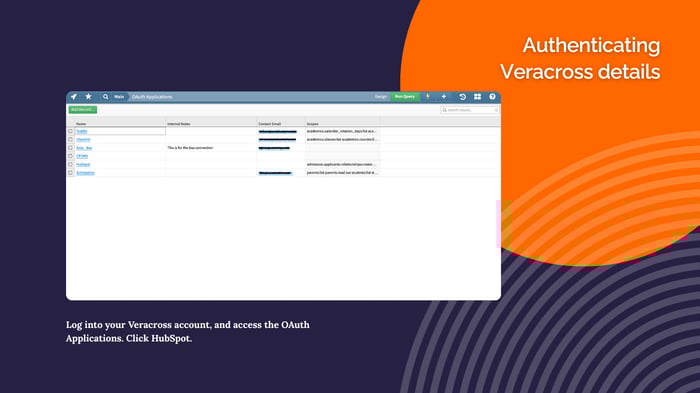
2. Log into your Veracross account, and access the OAuth Applications.
Click HubSpot.
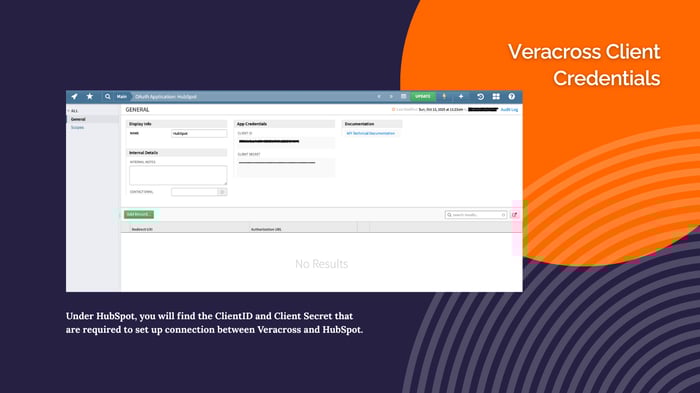
3. Under HubSpot, you will find the ClientID and Client Secret that needs to be filled in the form as shown in Step #1.
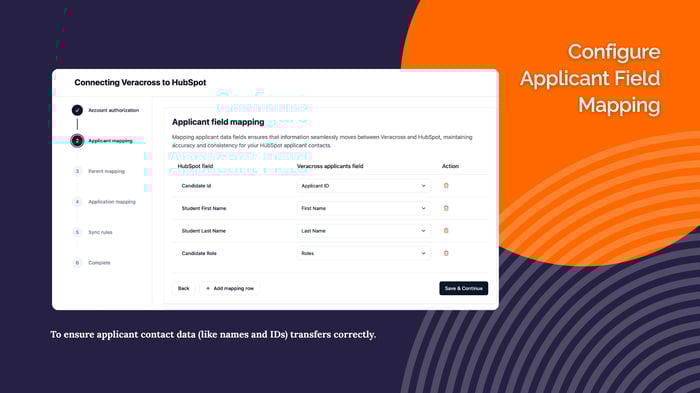
4. In the next three steps, map your Applicant, Parent, and Application fields to keep data aligned between Veracross and HubSpot.
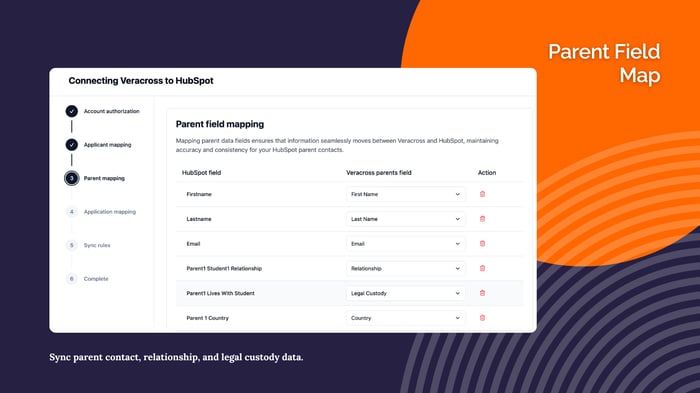
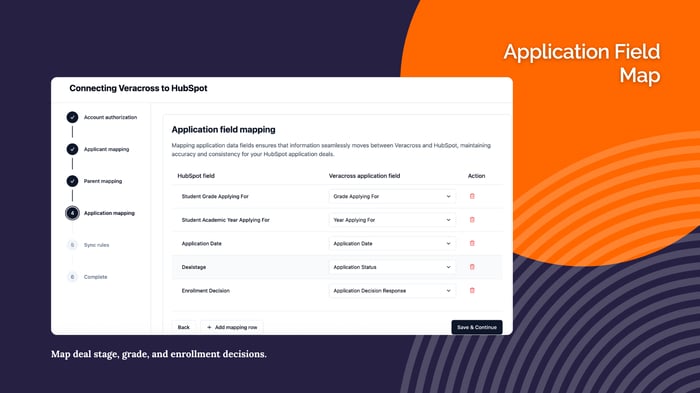
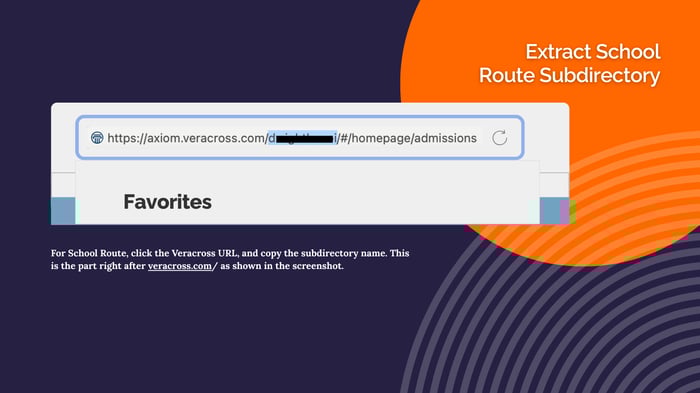
5. For School Route, click the Veracross URL, and copy the subdirectory name.This is the part right after https://veracross.com as shown in the screenshot.
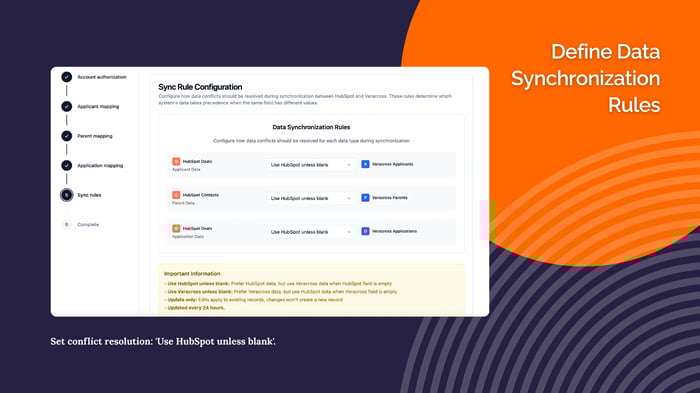
6. Set up Sync rules between Veracross and HubSpot as required.
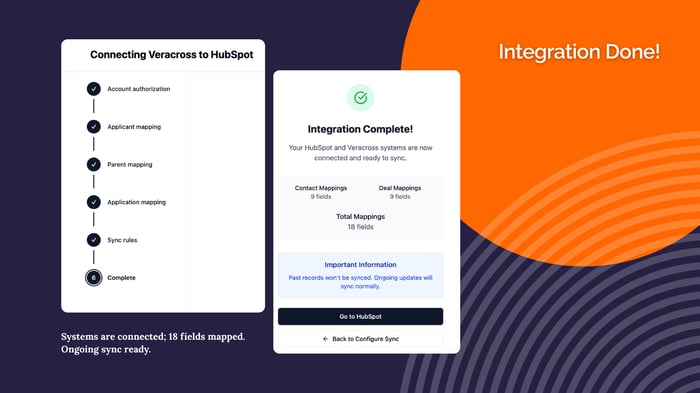
7. Once that is done, the integration is completed.
Click on Go to HubSpot to access the HubSpot account.





.png)